

Adding metrics to your project using the meta tag.
1. Using the column meta tag
To add a metric to Lightdash using the meta tag, you define it in your dbt project under the dimension name you’re trying to describe/summarize.
2. Using the model meta tag
Sometimes a metric references multiple columns, in these cases you can define the metric at the model level:
Metric Categories
Each metric type falls into one of these categories. The metric categories tell you whether the metric type is an aggregation and what type of fields the metric can reference:Aggregate metrics
Aggregate metric types perform (surprise, surprise) aggregations. Sums and averages are examples of aggregate metrics: they are measurements summarizing a collection of data points. Aggregate metrics can only reference dimensions, not other metrics.Non-aggregate metrics
Non-aggregate metrics are metric types that, you guessed it, do not perform aggregations. Numbers and booleans are examples of non-aggregate metrics. These metric types perform a calculation on a single data point, so they can only reference aggregate metrics. They cannot reference dimensions.Metric configuration
You can customize your metrics in your dbt model’s YAML file. Here’s an example of the properties used in defining a metric:Metric types
percentile
Takes the percentile of the values in the given field. Like SQL’sPERCENTILE_CONT function.
The percentile metric can be used on any numeric dimension or, for custom SQL, any valid SQL expression that gives a numeric table column.
For example, this creates a metric median_price by taking the 50% percentile of the item_price dimension:
median
Takes the 50th percentile of the values in the given field. Like SQL’sPERCENTILE_CONT(0.5) function.
The median metric can be used on any numeric dimension or, for custom SQL, any valid SQL expression that gives a numeric table column.
For example, this creates a metric median_price by taking the 50% percentile of the item_price dimension:
average
Takes the average (mean) of the values in the given field. Like SQL’sAVG function.
The average metric can be used on any numeric dimension or, for custom SQL, any valid SQL expression that gives a numeric table column.
For example, this creates a metric avg_price by taking the average of the item_price dimension:
boolean
Tells you whether something is True or False. Theboolean metric can be used on any valid SQL expression that gives you a TRUE or FALSE value. It can only be used on aggregations, which means either aggregate metrics or custom SQL that references other metrics. You cannot build a boolean metric by referencing other unaggregated dimensions from your model.
boolean metrics don’t do any aggregations; they just reference other aggregations.
For example, the avg_price metric below is an average of all of the item_price values in our product table. A second metric called is_avg_price_above_20 is a boolean type metric. The is_avg_price_above_20 metric has a custom SQL expression that tells us whether the avg_price value is greater than 20.
count
Does a table count, like SQL’sCOUNT function.
The count metric can be used on any dimension or, for custom SQL, any valid SQL expression that gives a set of values.
For example, this creates a metric number_of_users by counting the number of user_id values in the table:
count_distinct
Counts the number of distinct values in a given field. It’s like SQL’sCOUNT DISTINCT function.
The count_distinct metric can be used on any dimension or, for custom SQL, any valid SQL expression that gives a set of values.
For example, this creates a metric number_of_unique_users by counting the number of unique user_id values in the table:
date
Gives you a date value from an expression. Thedate metric can be used on any valid SQL expression that gives you a date value. It can only be used on aggregations, which means either aggregate metrics or custom SQL that references other metrics. You cannot build a date metric by referencing other unaggregated dimensions from your model.
Creating a max or min date metric with type: date
If you want to create a metric of a maximum or minimum date, you can’t use type: max or of type: min metrics because these are only compatible with numeric type fields. Instead, you can calculate a maximum or minimum date by defining a metric of type: date and using some custom sql, like this:
max
Max gives you the largest value in a given numeric field. It’s like SQL’sMAX function.
The max metric can be used on any numeric dimension or, for custom SQL, any valid SQL expression that gives a numeric value.
Because type: max metrics only work with numerical fields, you can’t use them to find a maximum date. Instead, you can use the MAX() function in the sql parameter of a metric of type: date to get a maximum date (you can see an example of this in the date section.
For example, this creates a metric max_delivery_cost by looking at the delivery_cost dimension and taking the largest value it finds:
min
Min gives you the smallest value in a given numeric field. It’s like SQL’sMIN function.
The min metric can be used on any numeric dimension or, for custom SQL, any valid SQL expression that gives a numeric value.
Because type: min metrics only work with numerical fields, you can’t use them to find a minimum date. Instead, you can use the MIN() function in the sql parameter of a metric of type: date to get a minimum date (you can see an example of this in the date section.
For example, this creates a metric min_delivery_cost by looking at the delivery_cost dimension and taking the smallest value it finds:
number
Used with numbers or integers. Anumber metric doesn’t perform any aggregation but can be used to perform simple transformations on other metrics.
The number metric can be used on any valid SQL expression that gives you a numeric or integer value. It can only be used on aggregations, which means either aggregate metrics or custom SQL that references other metrics. You cannot build a number metric by referencing other unaggregated dimensions from your model.
For example, this creates a metric called total_gross_profit_margin_percentage based on the total_sale_price and total_gross_profit_margin aggregate metrics:
sum
Adds up the values in a given field. Like SQL’sSUM function.
The sum metric can be used on any numeric dimension or, for custom SQL, any valid SQL expression that gives a numeric table column.
For example, this creates a metric total_revenue by adding up the values in the revenue dimension:
string
Used with fields that include letters or special characters. Thestring metric can be used on any valid SQL expression that gives you a string value. It can only be used on aggregations, which means either aggregate metrics or custom SQL that references other metrics. You cannot build a string metric by referencing other unaggregated dimensions from your model.
string metrics are rarely used because most SQL aggregate functions don’t return strings. One common exception is MySQL’s GROUP_CONCAT function.
For example, this creates a metric product_name_group by combining the unique values of a dimension called product_name:
Description
We add default descriptions to all of the metrics you include in your model. But, you can override these using the description parameter when you define your metric.Format
You can use theformat parameter to have your metrics show in a particular format in Lightdash. Lightdash supports spreadsheet-style format expressions for all metric types.
To help you build your format expression, we recommend using https://customformats.com/.
Example format expressions
(Legacy) format and round options
(Legacy) format and round options
Spreadsheet-style format expressions are the recommended way of adding formatting to your metrics in Lightdash. There are legacy formatting options, listed below, which are less flexible than the spreadsheet-style formatting.These are the options:
If you use both legacy and spreadsheet-style formatting options for a single metric, Lightdash will ignore the legacy
format and round options and only apply the spreadsheet-style formatting expression.Format (legacy)
Round (legacy)
You can round values to appear with a certain number of decimal points.Compact
You can compact values in your YAML. For example, if I wanted all of my revenue values to be shown in thousands (e.g.1,500 appears as 1.50K), then I would write something like this in my .yml:
Custom SQL in aggregate metrics
You can include custom SQL in your metric definition to build more advanced metrics using the sql parameter. Inside the sql parameter, you can reference any other dimension from the given model and any joined models. You can’t reference other metrics. You can reference dimensions from the same model like this:sql: "${dimension_in_this_model}"
Or from joined models like this: sql: "${other_model.dimension_in_other_model}"
Using custom SQL in non-aggregate metrics
In non-aggregate metrics, you can reference any other metric from the given model and any joined models. You can’t reference other dimensions. You can reference metrics from the same model like this:sql: "${metric_in_this_model}"Or from joined models like this: sql: "${other_model.metric_in_other_model}"
Show underlying values
By default, we show all of the dimensions from the Table when you clickView underlying data. If you have fields from a joined table included in your results table, then we’ll also show you all of the fields from the joined Table.
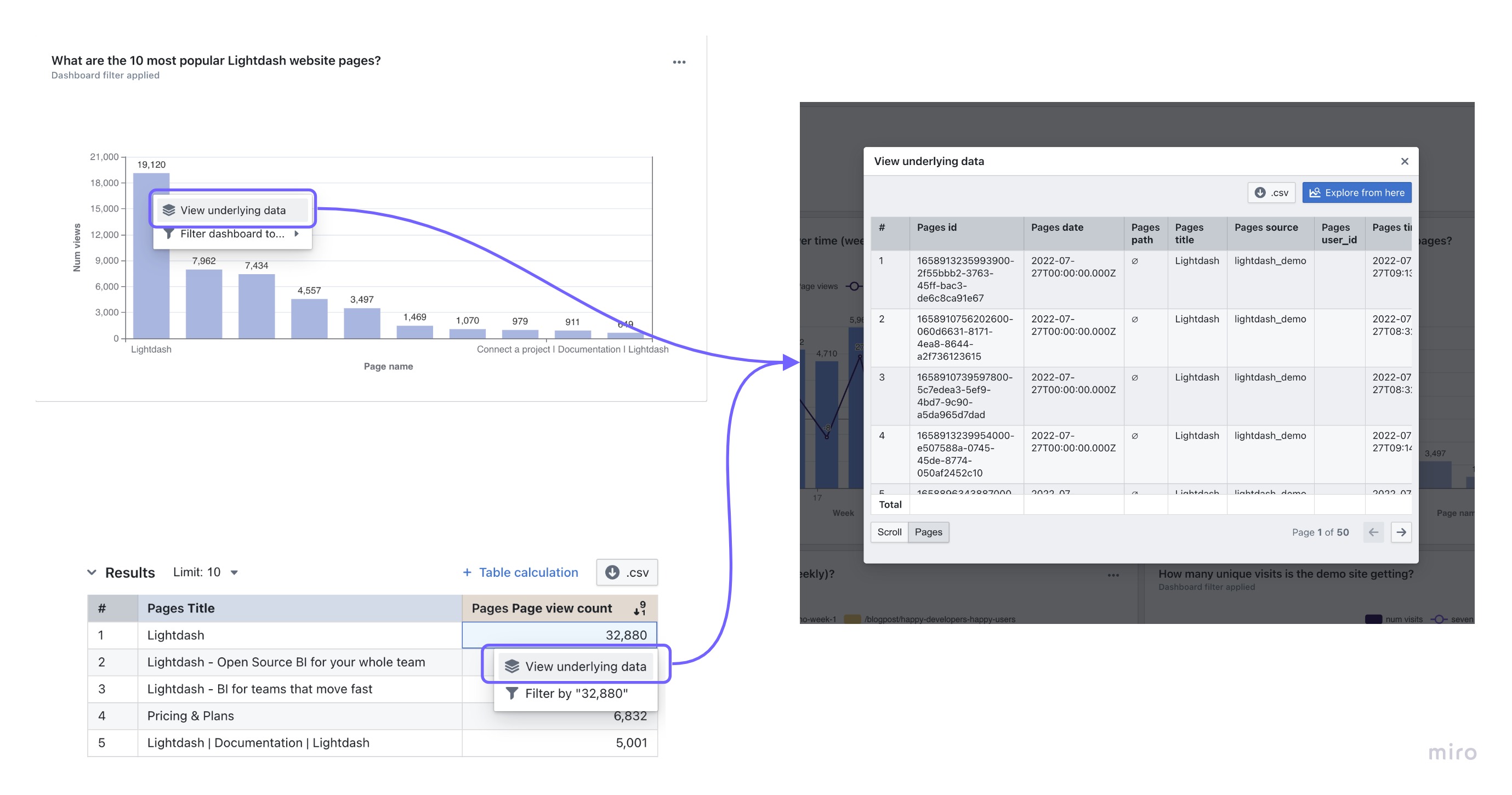
View underlying data by adding the list of dimensions to your .yml files:
my_joined_table_name.my_dimension.
The order that the fields are listed in show_underlying_values is the order that they’ll appear in on the view underlying data table.
Groups
You can group your dimensions and metrics in the sidebar using thegroups parameter.
To do this, you need to set up group_details in the model’s configuration. Then, you can use these groups to organize metrics and dimensions. You can create nested groups up to 2 levels.
Filters
Filters are applied to metrics any time that metric is used in Lightdash. Filters can only be used with aggregate metric types. For example, we could add a filter to our users count to make sure it didn’t include user IDs with closed accounts, like this:Filters tab in the Explore view, instead, they are applied automatically in the SQL query that fetches your results. That means filters added using the filter parameter can’t be removed in the UI and won’t be visible to users unless they look at the SQL query.
Available filter types
Date filters
For date filtering, useinThePast or inTheNext followed by a number and time unit (days, months, or years). These keywords are case sensitive and must be written exactly as shown.
Special characters in filters
To use special characters such as%!_> in your filter value you can either put the value in quotes, or escape special characters with a backslash \. For example, if you wanted to filter for subscription status of is_subscribed you can write the metric in one of these ways:
Filtering using a list of values
To filter a field using a list of values you can supply them as an array for that field. For example, if you wanted to filter for orders with order statuscompleted or shipped you should write the metric like:
Filters are joined using AND
For example:
is_closed_account = TRUE AND is_7d_active = FALSE.
Adding filters from joined models
To filter using a field from a joined model, just use the syntaxmodel_name.field, like this:
Metric filters cannot be used with non-aggregate metrics
You can’t use filters with non-aggregate metric types. Instead, if your non-aggregate metrics are referencing aggregate metric types, you need to apply metric filters to the aggregate metrics. Here’s an example: imagine you wanted to calculate the average cost per item that had the statusshipped. You would need to do something like this in your .yml: